In today's digital age, customer reviews are the lifeblood of any business. They build trust, attract new customers, and provide valuable feedback. But how do you make it easier for your happy customers to share their positive experiences? Enter the NFC card – a powerful, yet simple, tool that streamlines the review process.
If you're a client who recently received one of our mailers, you might have noticed a new addition: an NFC card! For those who already have one, this guide is for you. We'll walk you through programming your NFC card to directly link to your business's Google Business Profile review page, making it effortless for customers to leave a five-star rating.

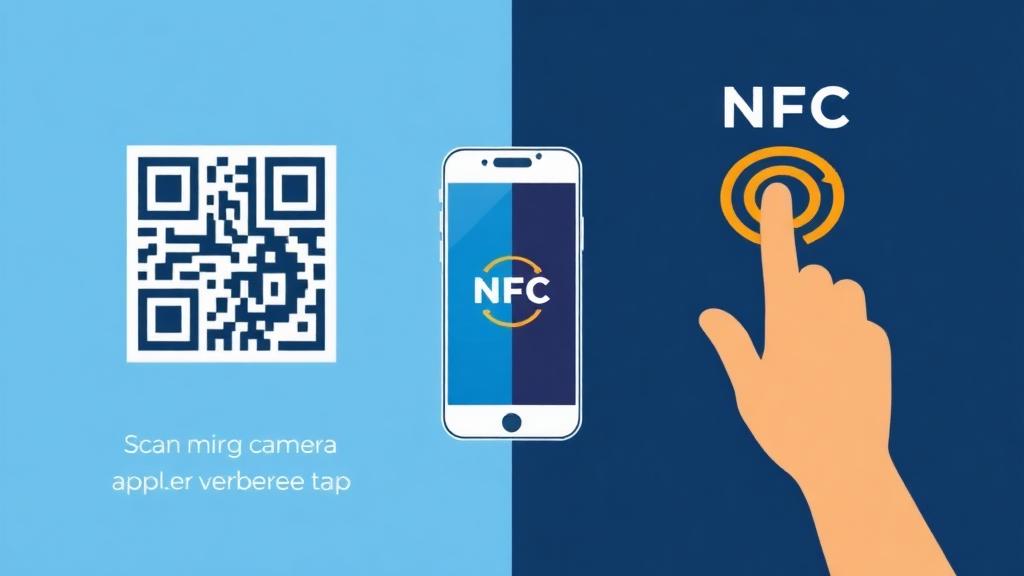
QR Codes vs. NFC: Understanding the Basics
You might have already seen a QR code on your NFC card. QR codes are a familiar sight, and they serve a similar purpose: to quickly direct users to a specific online destination. When a customer scans the QR code with their phone's camera, it can take them straight to your Google review section. It's a great way to capture a review right after you've provided excellent service.
But what exactly is NFC, and how is it different? NFC stands for Near Field Communication. If your smartphone is relatively modern, it has a small chip inside that can communicate with other NFC-enabled devices wirelessly over short distances. With an NFC card, there's no need to open a camera app or scan anything. Simply unlock your phone and tap it to the NFC card, and voilà – you're instantly directed to the intended website, in this case, your business's review page.
This card, right here, says "New Tag," which means it's blank and ready to be programmed. Today, we're going to show you exactly how to do that.
Getting Started: Download the NFC Tools App
Before we can program the NFC chip, you'll need an essential tool: the NFC Tools app. This app is available for both Android and iOS devices, so no matter your smartphone, you're covered.
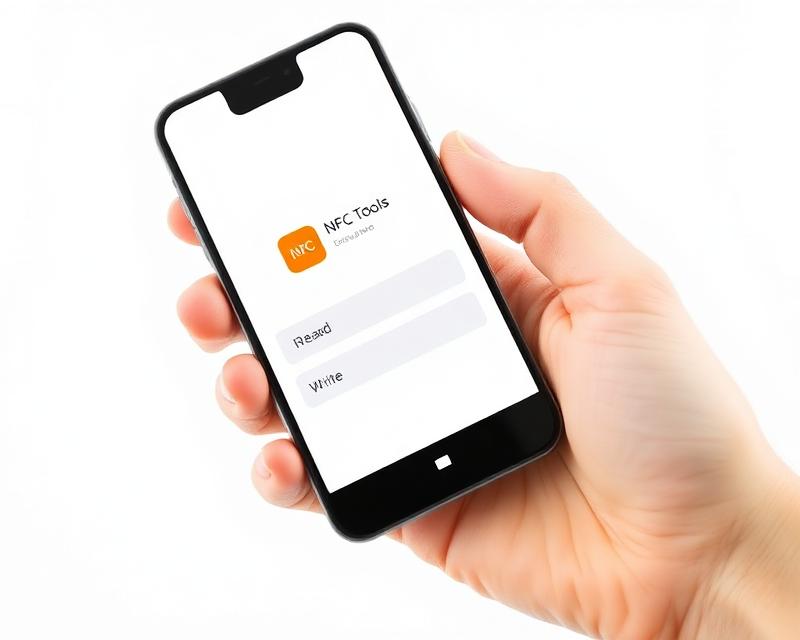
- Download the App: Use the buttons above or search for "NFC Tools" in your app store. It has a distinctive orange icon, making it easy to spot.
- Open NFC Tools: Once installed, tap the app icon to open it. You'll see various options, but don't worry about all of them for now.
Programming Your NFC Card: Step-by-Step
With NFC Tools installed, let's get your card ready to collect those valuable reviews.
Step 1: Access Your Google Business Profile and Get Your Review URL
The goal is to link your NFC card directly to your Google review page. Here's how to get the necessary link:
- Log in to Google Business Profile: Open your web browser on your phone and navigate to your Google Business Profile. Make sure you log in with the account that manages your business listing.
- Find the "Ask for Reviews" Button: Once logged in, you should see an option or button that says something like "Ask for Reviews" or "Get Reviews." Click on it.
- Copy the Review URL: A unique URL (web address) will appear. This is the direct link to your business's review section on Google. Carefully copy this URL.
Step 2: Add the URL Record in NFC Tools
Now, let's input this URL into the NFC Tools app:
- Navigate to "Write": Inside the NFC Tools app, tap on the "Write" option.
- Add a Record: Tap on "Add a record."
- Select "URL": Choose the "URL" option from the list, as we are adding a web address.
- Paste the URL: Paste the Google review URL you copied earlier into the provided field.
- Confirm: Tap "OK" to confirm the record. If the record appears invalid, simply try adding it again. Sometimes a small glitch can occur. Once it looks correct, proceed.
Step 3: Write the Information to the NFC Card
This is the crucial step where you transfer the data to the NFC chip:
- Tap "Write": Back on the main "Write" screen, tap the "Write" button again.
- Confirm Write Action: The app will ask, "Write on NFC tag?"
- Approach the Card: Hold your phone near the NFC card. You should feel a slight vibration or hear a sound, indicating the phone has detected the card.
- Write Complete: Once the process is finished, the app will display "Write complete."
Congratulations! Your NFC card is now programmed.
Verify and Test Your NFC Card
A crucial part of any process is verification. Let's make sure your NFC card works as intended:
- Unlock Your Phone: Ensure your phone is unlocked.
- Tap the Card: Gently tap the back of your phone to the NFC card.
- Check the Result: You should hear a sound (often a "bloop" or vibration) and your phone should automatically open your Google Business profile's review section, ready for a customer to leave feedback.
If it works, you've successfully set up your NFC card to make getting reviews a breeze!

Unlock the Power of Reviews
In conclusion, programming your NFC card is a straightforward process that can significantly impact your business's online reputation. By making it incredibly easy for satisfied customers to leave reviews, you're not just collecting feedback; you're building social proof and driving more business.
This tool pairs perfectly with our Review Velocity System, which automates review collection and helps you maintain a consistent stream of fresh, authentic 5-star reviews. Recency is one of the most powerful local ranking factors today.
Of course, reviews are just one piece of the puzzle. To maximize their impact, you need a website built to validate your Google Business Profile and a complete Local SEO strategy that ties it all together.
So, go ahead, program your card, and start "happy hunting" for those valuable reviews with your new NFC/QR code badge. If you have any questions or need further assistance, don't hesitate to reach out!